How do I change the status of a card
You will need to navigate to the card/s in question, select the edit button in the cards status window:
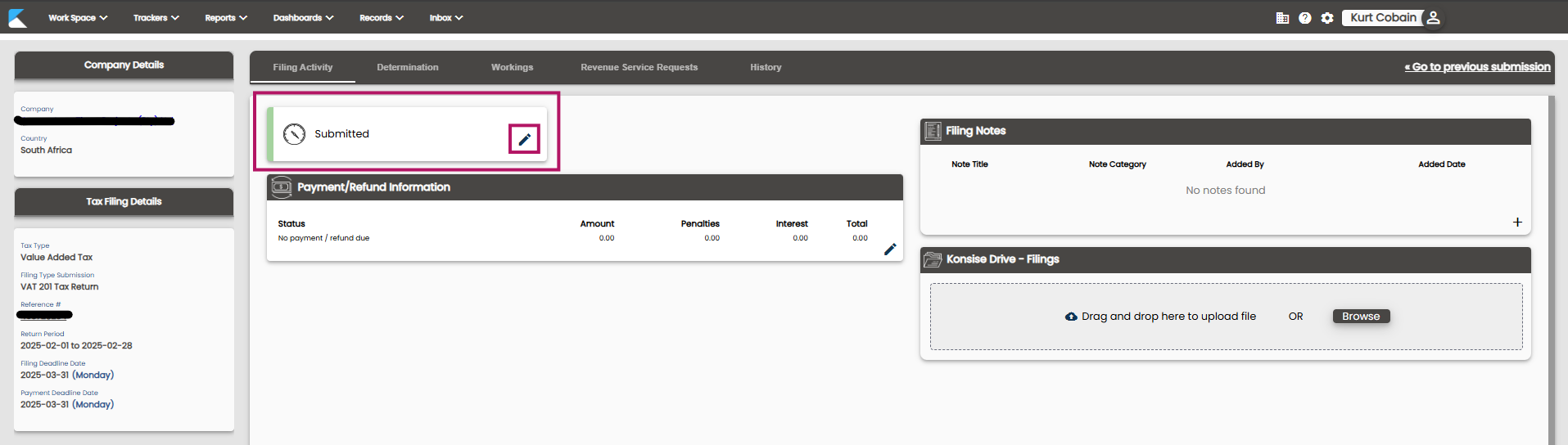
You will then see a new window pop up with a drop down to select the status you want to change it to: (If you change it to current but the due date has passed it will reflect as overdue)
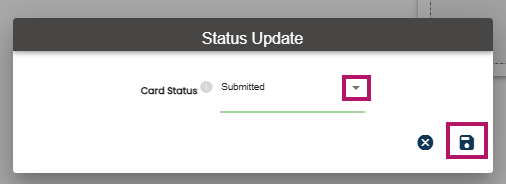
Change the status to the desired state then click the save icon.
Related Articles
How do I change the payment status of a tax filing?
How do I change the payment status of a tax filing? Instructions From the left-hand side of the screen, click on Work Space. Select the relevant card on the Workflow board. Click the Edit Payment/ Refund details button. Modify the details as required ...How to add Revenue Service Request Card
What is a Request Card? These are cards that are created by either: Creating a Revenue Service Request from your original tax filing; OR Adding a New Request from the Request Workflow Board These cards are found on the Request Workflow board. When ...How to add Revenue Service Request Card
What is a Request Card? These are cards that are created by either: Creating a Revenue Service Request from your original tax filing; OR Adding a New Request from the Request Workflow Board These cards are found on the Request Workflow board. When ...How do I add a note to a card?
How do I add a note to a card? Instructions From the Workspace, click on the relevant card. From the Tax Filing Notes section on the right-hand side, click the plus sign. In the Notes window, click the plus sign. Give the note a name, add a note and ...How do I add files to a card?
If you click on a tax filing card, you will now see an improved way to upload files: There are two ways of uploading files to a tax filing card: Drag and drop Select the files you would like to upload from the relevant folder and drag the pointer ...