Using Chrome/Edge as your preferred browser to log into Konsise
Konsise is compatible in both Microsoft Edge and Google Chrome. Once you have launched your browser, you can navigate to https://secure.konsise.cloud.
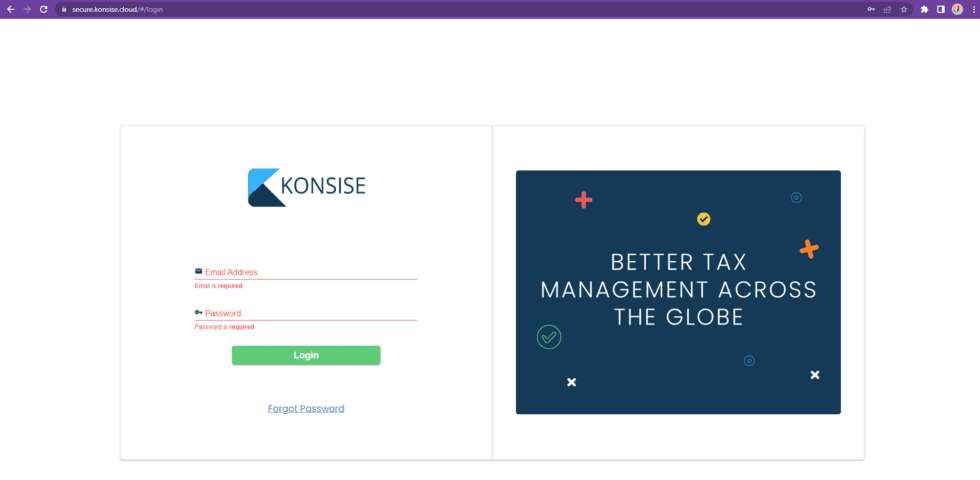
The first page you are greeted with is the login page.
Create a shortcut for the Konsise Platform
You are able to create a shortcut for the Konsise Platform on your desktop as well as pin it to your taskbar for ease of access.
In order to do this, please follow the instructions below:
- In Chrome, while on the Konsise Platform login page, click on the three dots in the top right of your screen. Navigate to “More tools” and then “Create shortcut…”
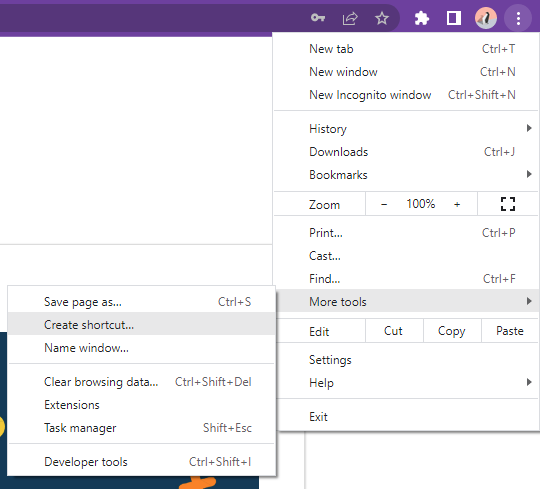
- Once you click on “Create shortcut…” a popup will appear as below:
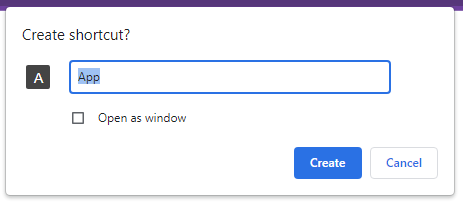
- Rename the shortcut to “Konsise Platform” or anything other identifier and select the “Open as window” checkbox. Click “Create”.
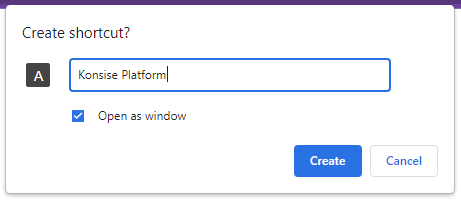
You will notice a new window will open that is dedicated to the Konsise Platform.
Change the icon of the Konsise Platform shortcut
- Navigate to your desktop to find your new shortcut icon as seen below:

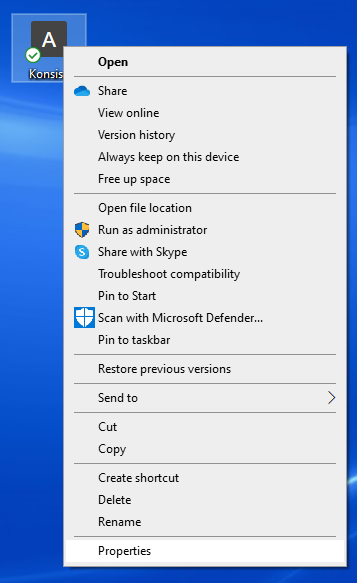
- In order to identify the icon on your desktop each time you need to use the Konsise Platform, we recommend using a better icon which can be downloaded here. To utilize this icon right click on the shortcut icon on your desktop and navigate to “Properties”.
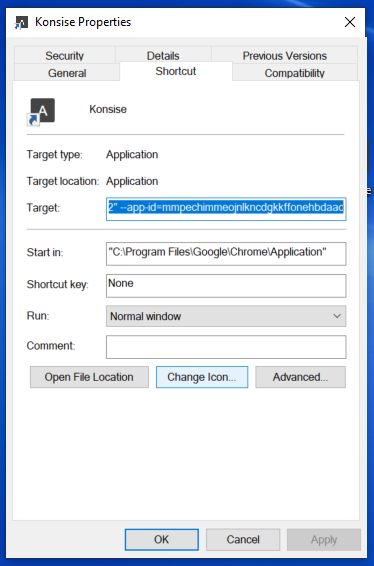
- In the “Shortcut” tab click “Change icon…” to set your new icon.
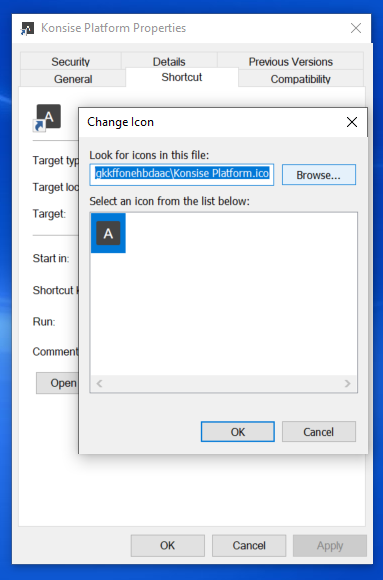
- In the popup click “Browse” to find the new icon you have downloaded.
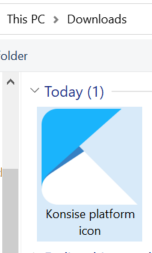
After you have selected your new icon click “OK” and then “Apply”.
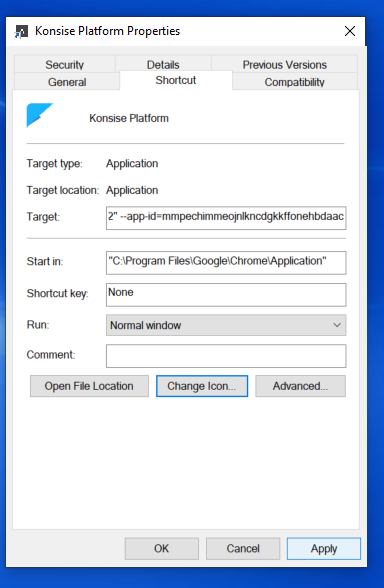
- Your new icon will display on your desktop as follows:
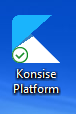
Pin your shortcut to your task bar
- Right click on your icon and select “Pin to taskbar…”
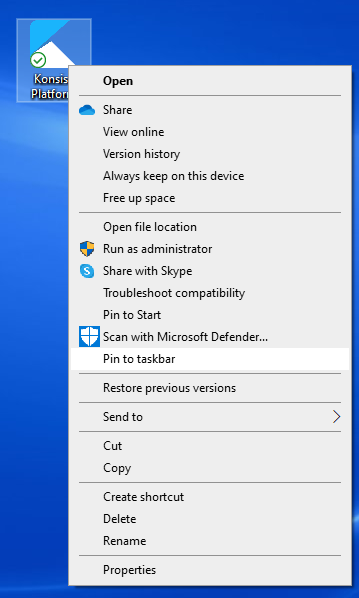
- You can now easily navigate to your icon on your taskbar and have the Konsise Platform open in its own window.

Konsise Platform Icon pinned to Taskbar
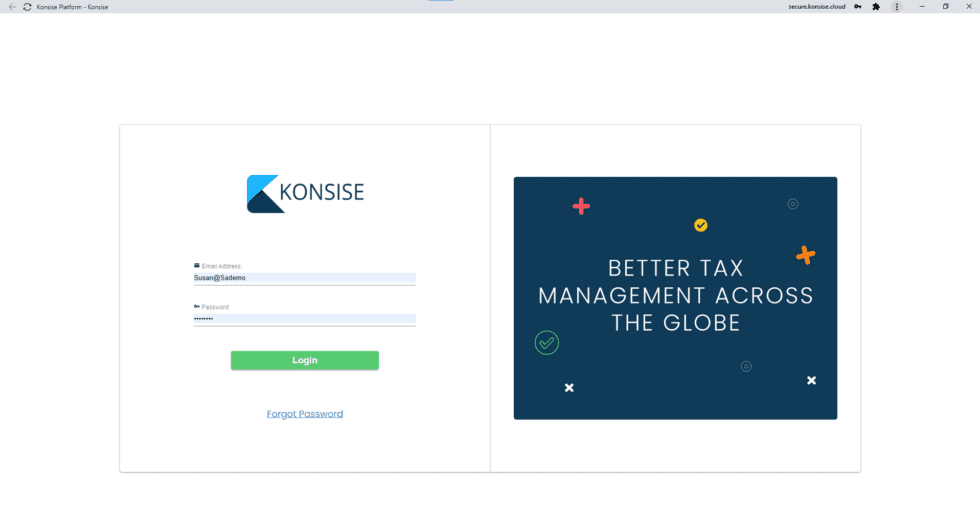 Konsise Platform in its own window
Related Articles
Guide to Opening SARS PDF Documents in Chrome & Edge
Due to the security protections applied by SARS, certain PDFs may appear blank when opened in a browser. To ensure full visibility, we recommend setting Adobe Acrobat as your default PDF viewer. This will allow you to open and view SARS documents ...Sync between Konsise and SARS
Please note: This process will only occur once Konsise has been activated as an ISV on SARS eFiling Follow the steps below to finalize the sync process: Go to “Connections” on the top navigation bar: Click on Create Revenue Service Connection Select ...What reports & trackers does Konsise provide?
Reports & Trackers There are 2 types of reports available in Konsise: Compliance Report This report shows the status of all your filings compliance across all tax types & companies, for a defined period: Corporate Income Tax Report The Corporate ...What reports & trackers does Konsise provide?
Reports & Trackers There are 2 types of reports available in Konsise: Compliance Report This report shows the status of all your filings compliance across all tax types & companies, for a defined period: Corporate Income Tax Report The Corporate ...What file types can I upload to Konsise?
The following types of files can be uploaded to Konsise: Valid File Types: File extensions: Adobe Acrobat Portable Document Format .pdf Bitmap Image File .bmp Microsoft Word Document .doc Microsoft Office Open XML .docx Graphics Interchange Format ...